How Bloom works
What each part of Bloom does for you, where to find it, and how to use it — with the app's own words and screens.
First steps
What it does for you
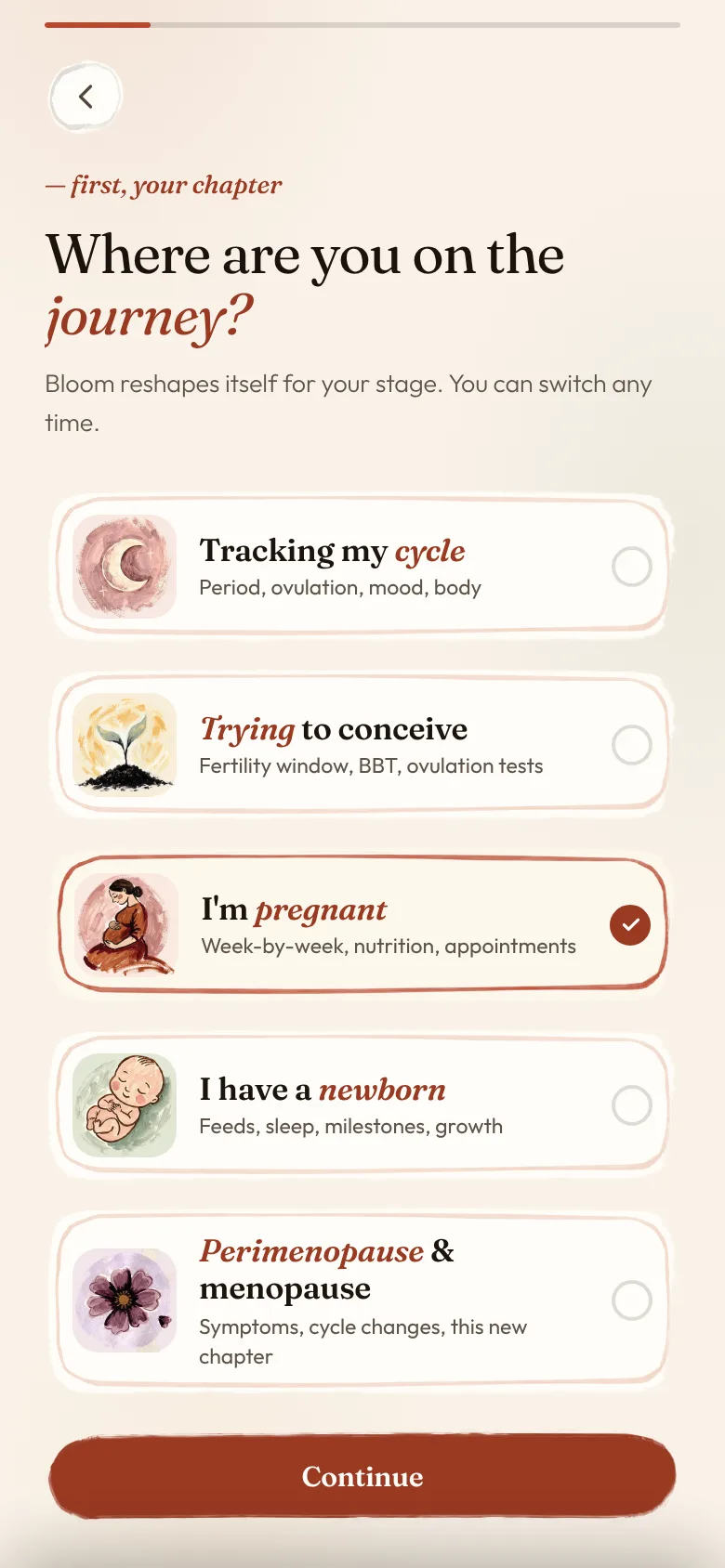
Bloom shapes itself around where you are — your cycle, trying, pregnancy, the newborn months or menopause. You choose once, and move on whenever life does.
Where it is
Begin Me Your chapter
How to use it
- Open Bloom and tap Begin. Choose the chapter you are in, then answer a few short questions.
- The bar at the bottom: Today is your day, Journey the weeks and months, Us your people, Me your settings.
- The round + in the middle of the bar (Log something) logs anything, wherever you are. The button at the top right opens Bloom herself (Ask Bloom).
- To move to another chapter: Me → Your chapter, and choose. What you have logged comes with you.
- Me → Language changes Bloom's language; Notifications sets a gentle reminder.
- If you need Bloom to go quiet — after a loss, or for any reason — Me → I need a pause → Pause everything. Nothing is deleted, and you come back when you are ready.
Cycle
What it does for you
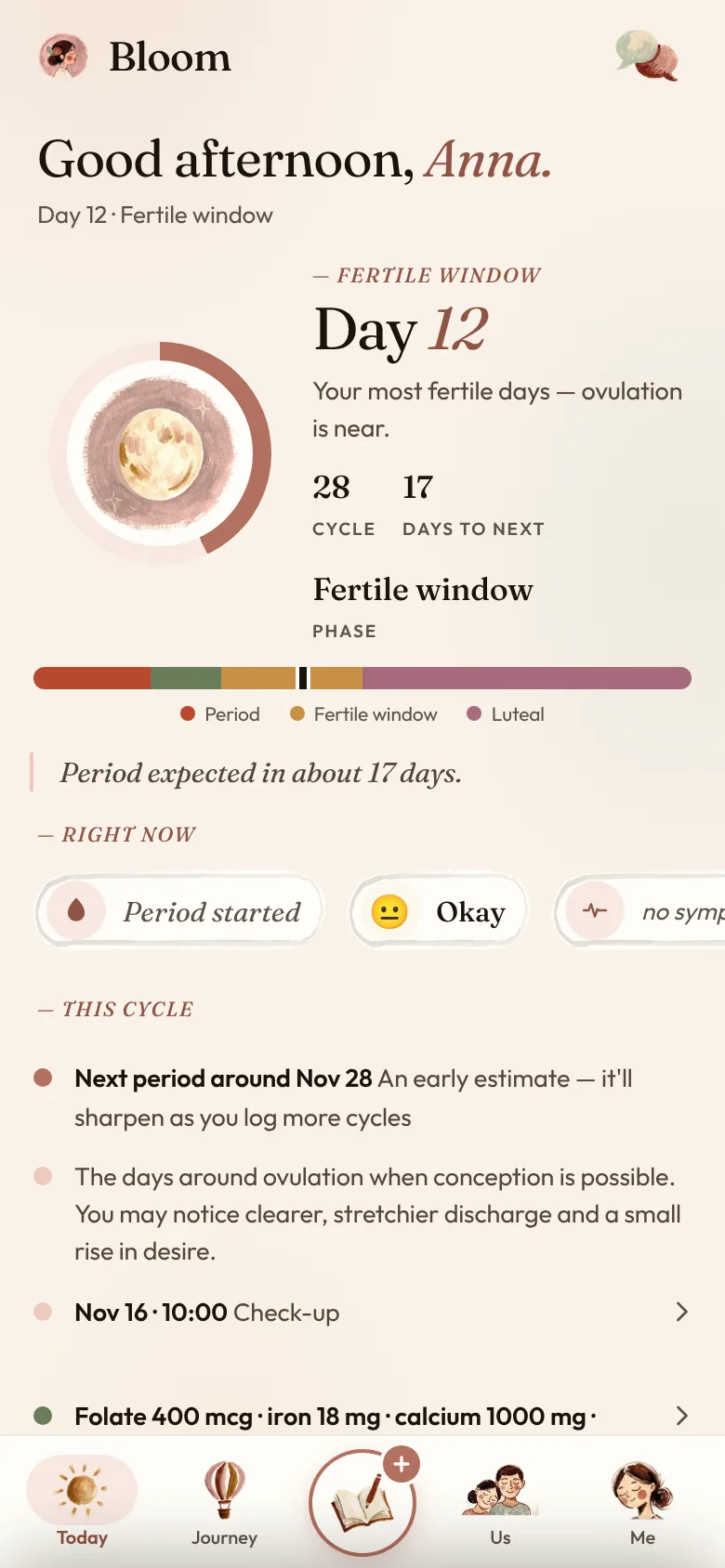
Know where you are in your cycle and what is coming. Bloom learns your rhythm from the periods you log and shows the days ahead.
Where it is
Today · Journey
How to use it
- When your period starts, tap + and choose Period started. When it ends, tap your period on Today and choose It ended today.
- Log how you feel the same way: Mood and Symptoms.
- Today shows the day of your cycle, its phase — for example Fertile window — and when your next period is likely.
- Journey holds the month. Tap a day to see it, log it, or add an appointment.
- To change a period's days, tap it on Today (Your period): First day, Last day, or Remove this period. An older one: Journey → its day → Change this period.
- A check-up coming? + → Appointment, and choose its day. To change or delete it later: Journey → its day → tap the appointment.
Trying
What it does for you
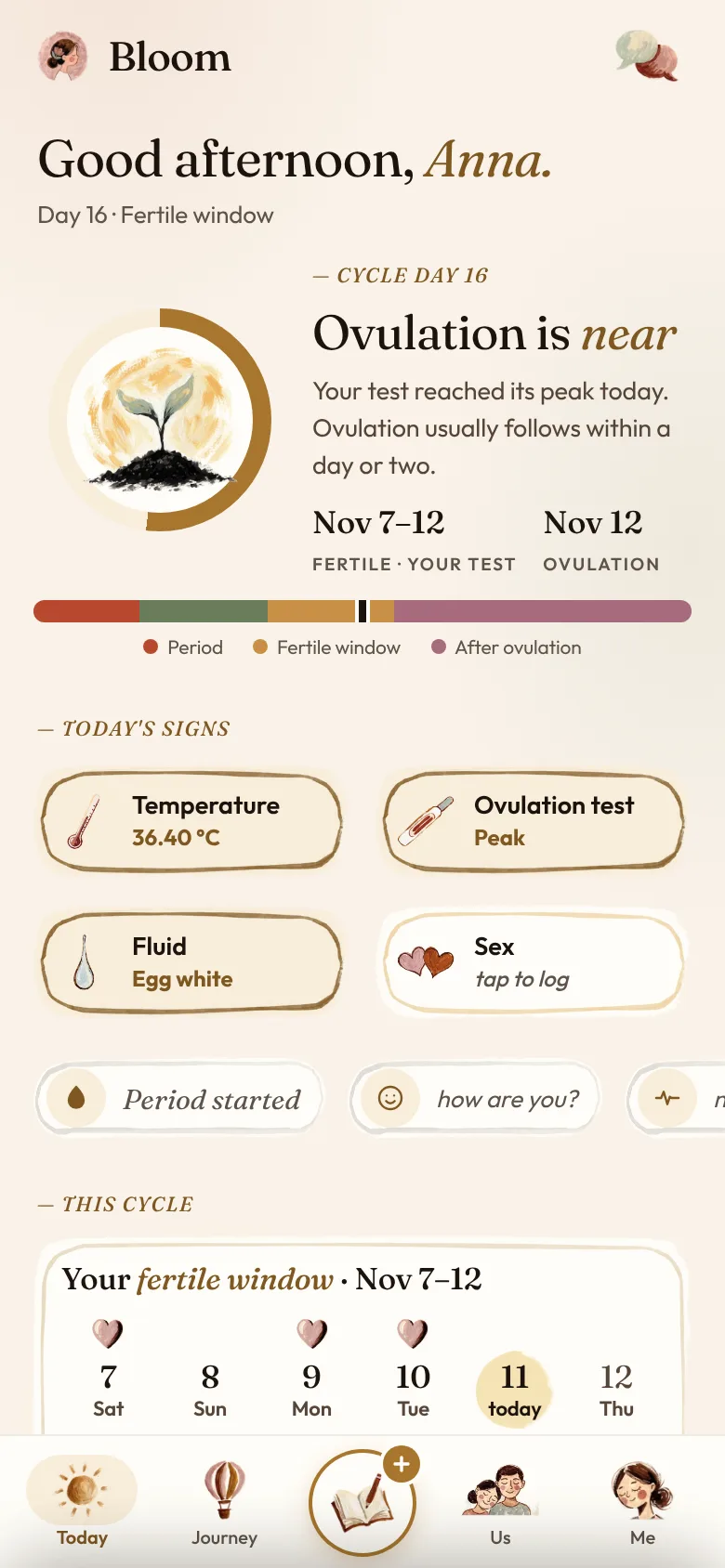
Your signs — morning temperature, ovulation tests, fluid — move your fertile window, and Bloom says which sign it rests on.
Where it is
Today · +
How to use it
- Each morning, tap + → Temperature and set your temperature.
- Log an Ovulation test and your Fluid the same way — and Sex, if you like.
- Today shows your fertile window day by day; it moves with what you log.
- When you take a pregnancy test, log it: + → Pregnancy test.
- When your period comes: + → Period started. Its days are changed as in Cycle.
Good to know
The fertile window is an estimate. Bloom is not birth control and not a medical device.
Pregnant
What it does for you
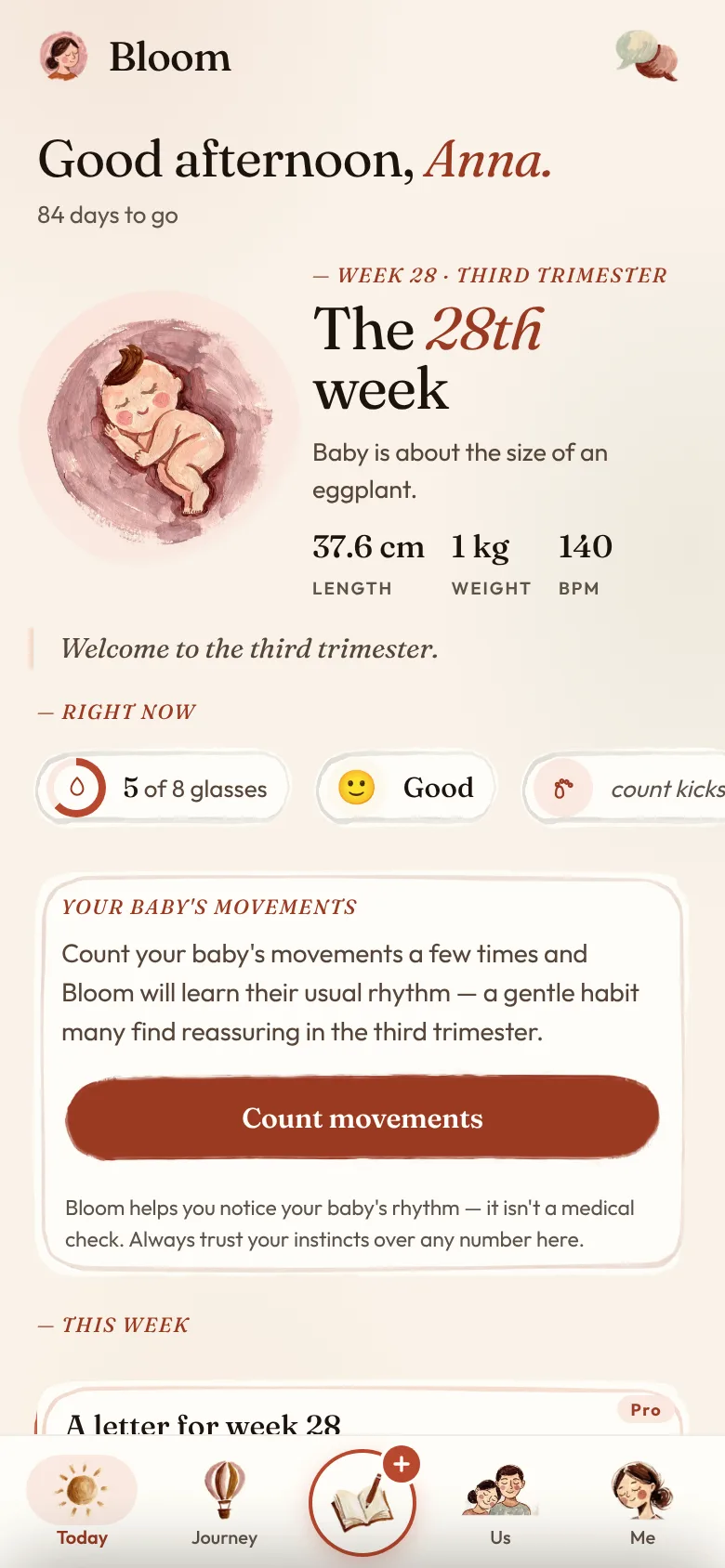
Week by week: how your baby is growing, what this week brings, your appointments — and the kick counter and contraction timer when the time comes.
Where it is
Today · Journey
How to use it
- Today shows your week and how your baby is growing; Journey goes week by week.
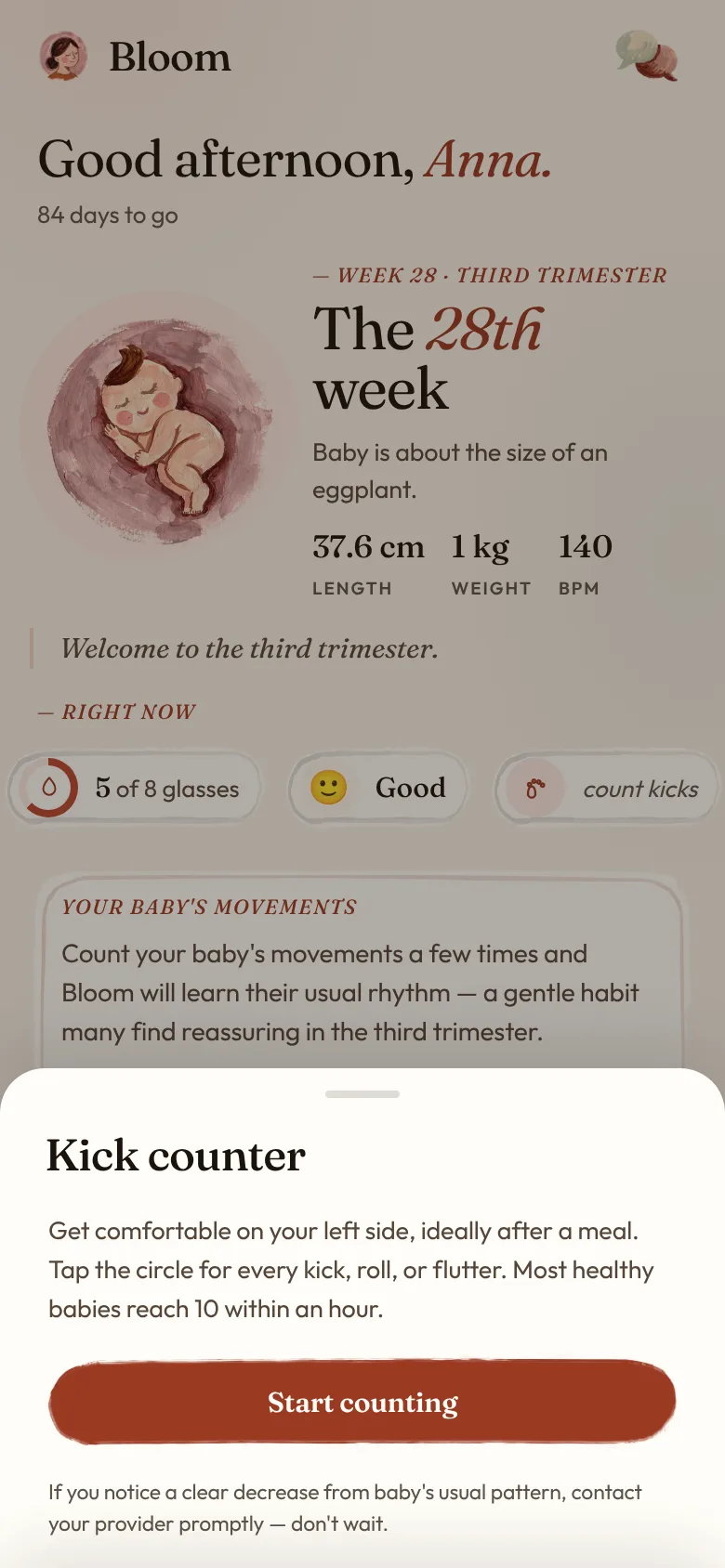
- To count movements, tap count kicks on Today: the Kick counter opens. (A Pro tool.)
- In labour, + → Contraction timer times each contraction. (A Pro tool.)
- Add appointments with + → Appointment, on any day. To change or delete one: Journey → its day → tap the appointment.
- When your baby is born: Me → My baby is here. Bloom turns to the newborn months, and everything you logged comes with you.
Good to know
If you feel fewer movements than usual, or they slow down or stop, call your midwife or maternity unit straight away, any hour. You will not be wasting anyone's time.
Newborn
What it does for you
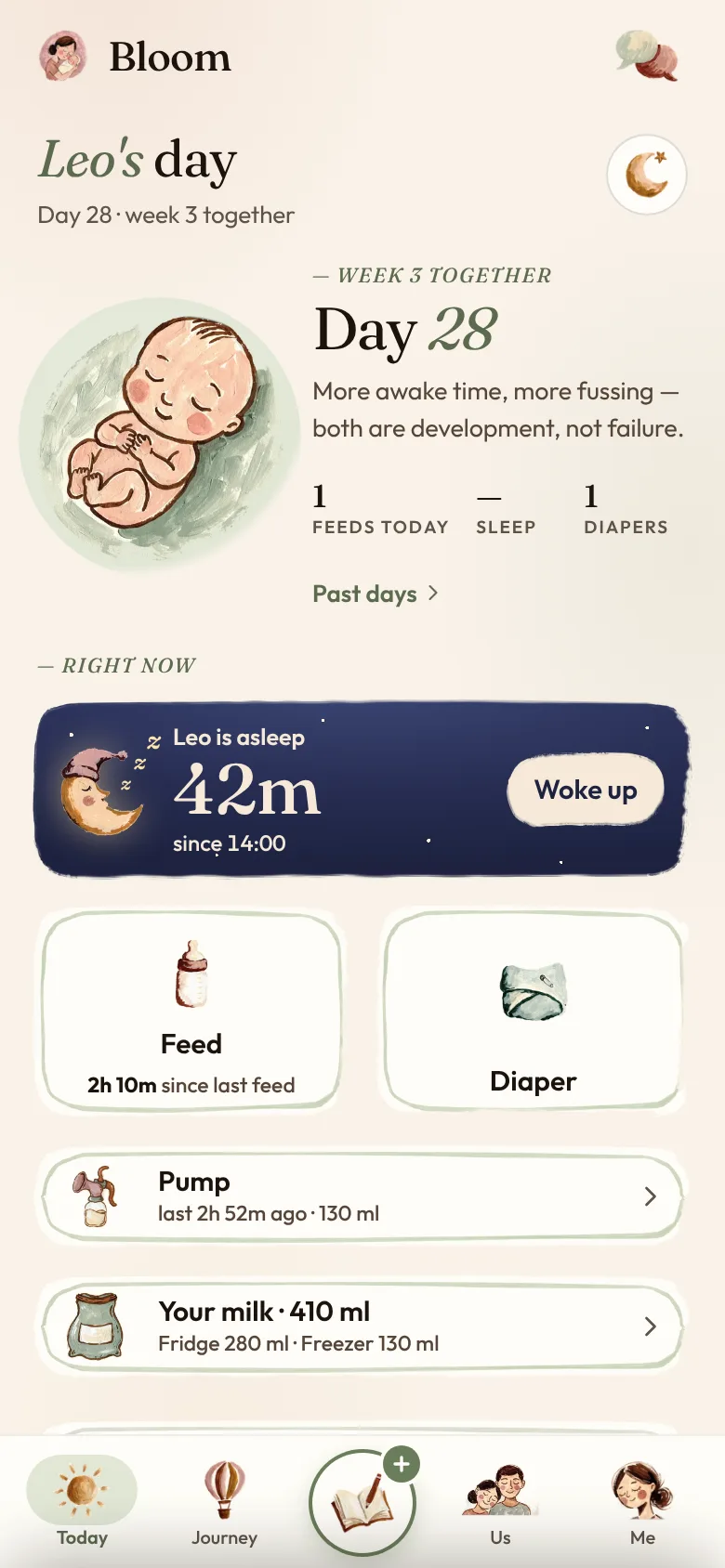
Feeds, sleep and diapers in one tap — even at 3am. Pumping by side, and the milk you have in the fridge and the freezer.
Where it is
Today
How to use it
- When a feed starts, tap Feed and choose Left, Right or Bottle.
- Sleep starts the sleep timer; tap Woke up when your baby wakes.
- Diaper: Wet, Dirty or Both.
- Pump times pumping by side — Left, Right or Both — and keeps how much you pumped.
- Your milk shows the milk in the Fridge and the Freezer.
- At night: Me → Night mode dims Bloom for one-handed feeds.
Menopause
What it does for you
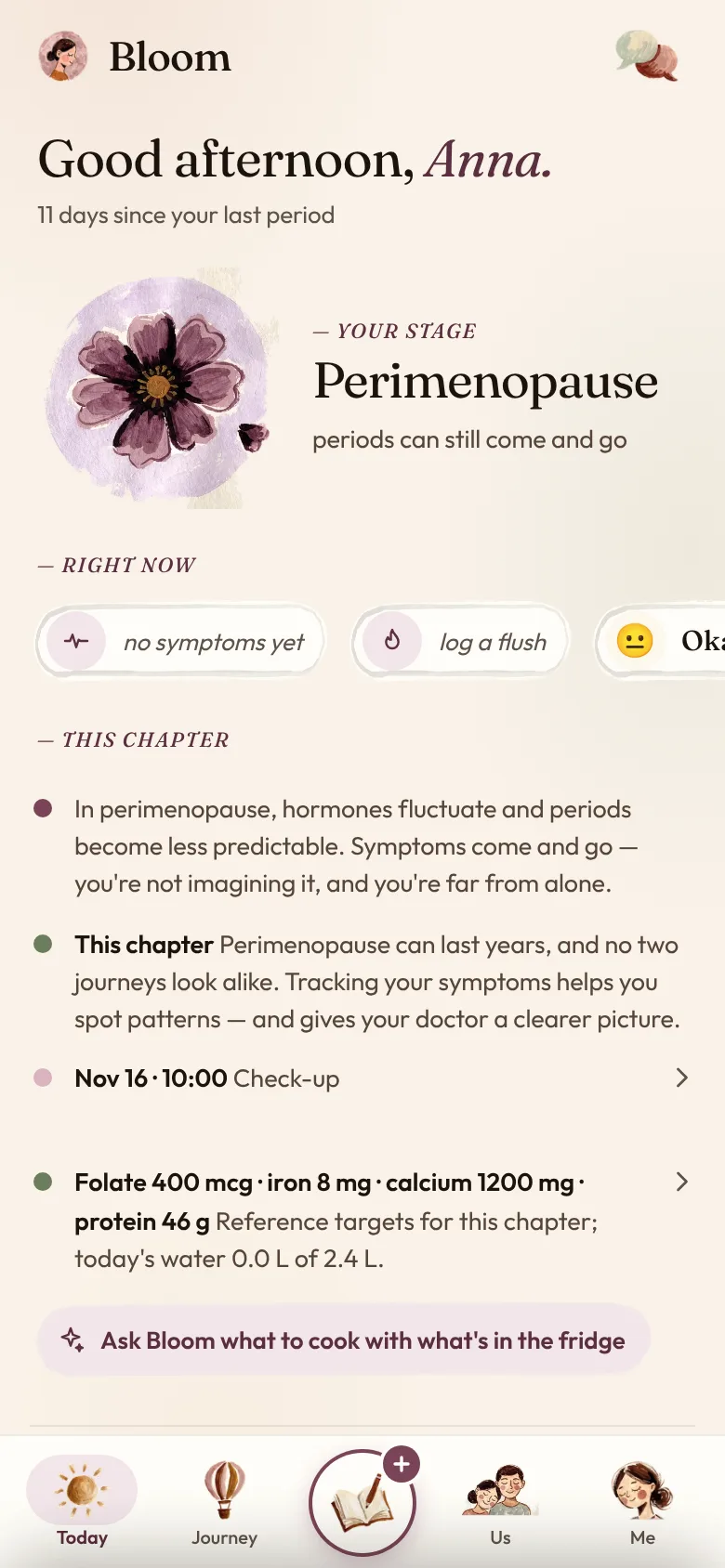
Symptoms, hot flushes and cycle changes over time, so you can see your own pattern — and bring it to your doctor.
Where it is
Today · +
How to use it
- Each time a flush comes, tap + → Flushes.
- Log the rest of your day the same way: Symptoms and Mood.
- If you still have periods: + → Period started when one begins; when it ends, + → Your period → It ended today.
- Journey holds the month. Tap a day to see it, log it, or add an appointment.
- Me → Health summary makes a private summary to show your doctor.
Ask Bloom
What it does for you
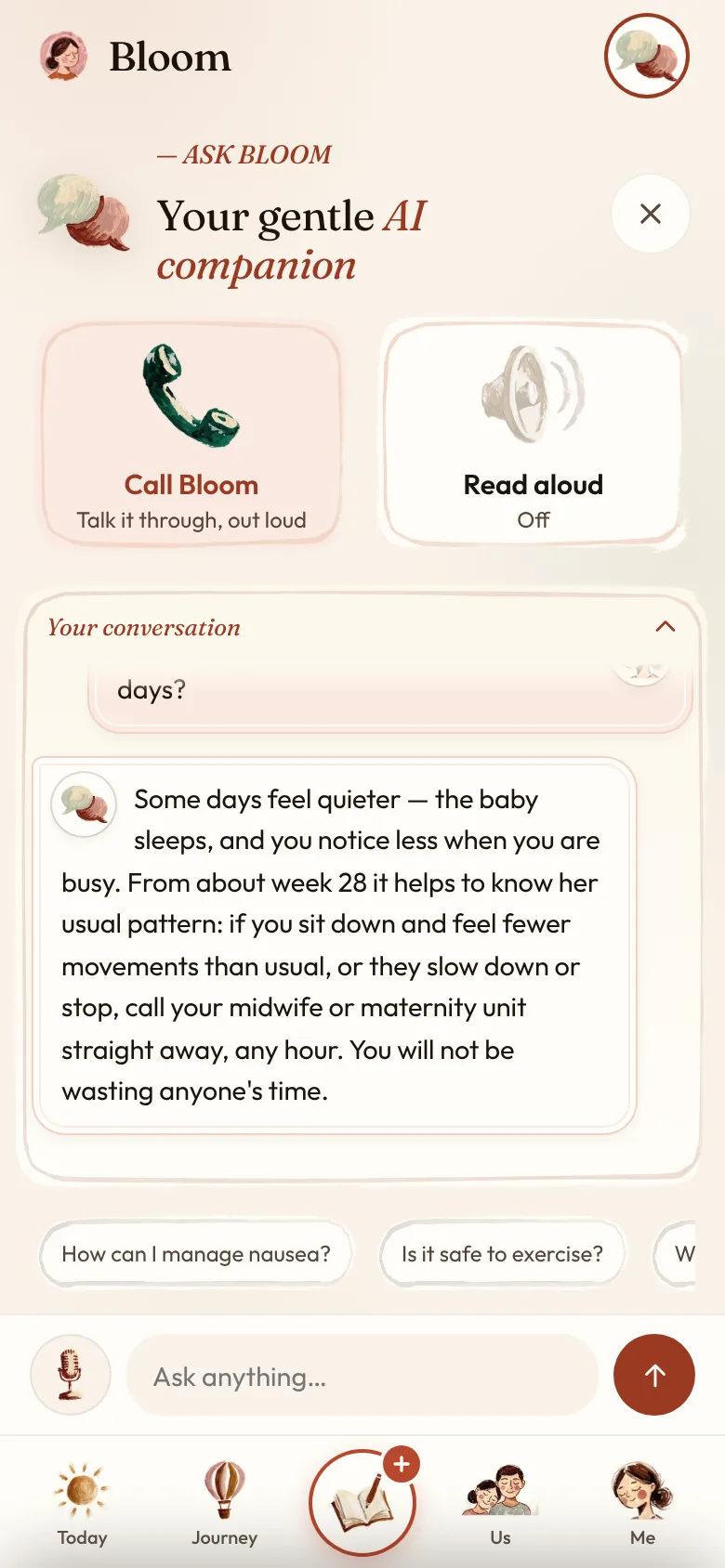
Write to Bloom, or call her and talk. She answers in plain words, remembers what you have told her, and says when something needs your doctor or midwife.
Where it is
The round button at the top right (Ask Bloom)
How to use it
- Tap the round button at the top right. Write your question and tap the arrow (Send) — or tap one of the questions Bloom suggests.
- To talk instead, tap Call Bloom and speak as you would to a friend. Tap End call when you are done.
- Read aloud has Bloom read her answers out loud.
- Bloom remembers what you share — your people, your dates — so you don't start again each time. To clear it: Me → Privacy & data → Forget everything Bloom has learned.
- In calls, Bloom learns to tell voices apart, so she can greet your people by name. The voices stay on your phone: Me → Privacy & data → Voices Bloom knows.
Good to know
Bloom's answers are general information, not medical advice. To answer, your question goes through Bloom's own server to Anthropic; a call goes straight from your phone to OpenAI. What is sent, and why.
Family
What it does for you
Bloom is yours, and your people can be part of it: your circle, the baby pool, letters for your baby and your book.
Where it is
Us
How to use it
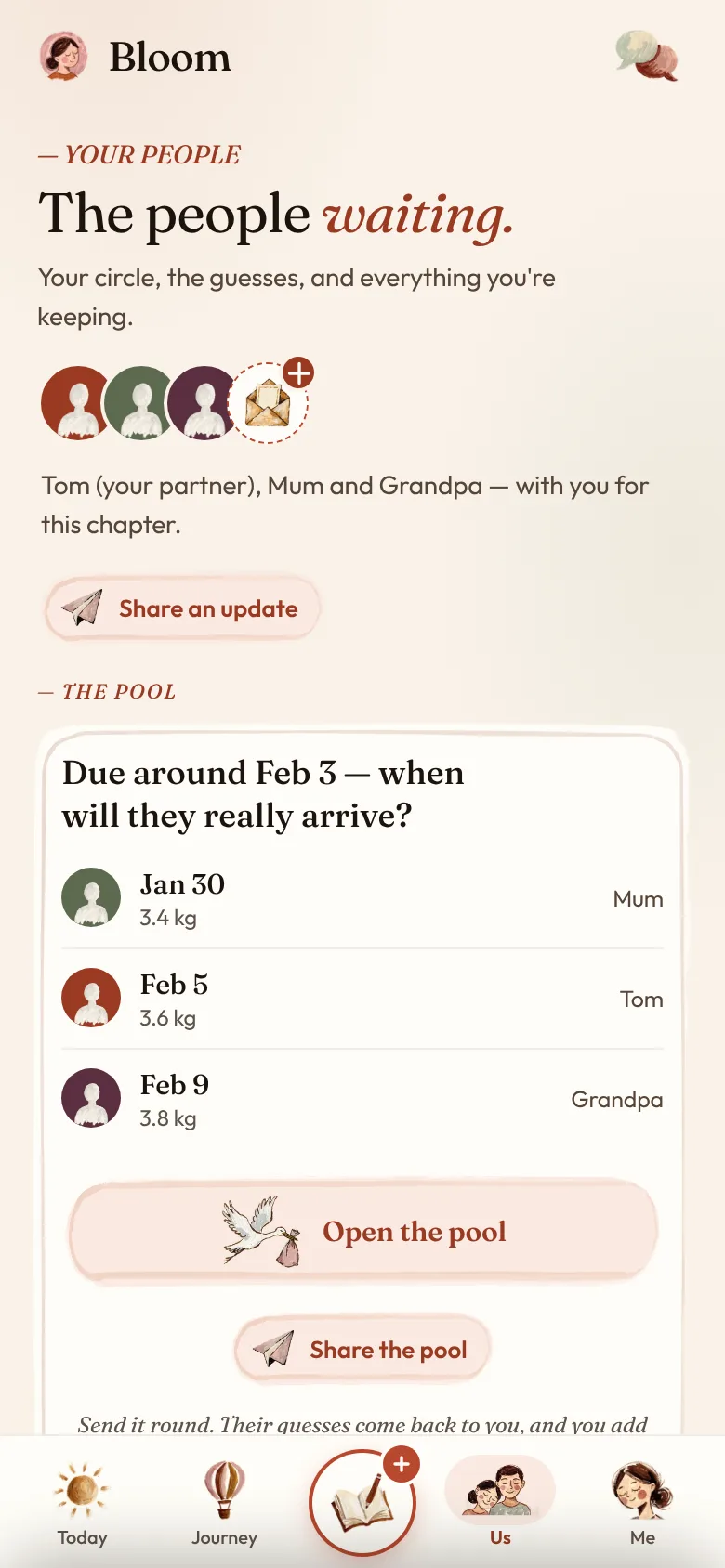
- Us shows your circle: your partner and the people you add.
- Share an update sends a short update to the people you choose — only what you choose, only when you send it.
- In pregnancy, the baby pool: Add the first guess (later Open the pool), then Share the pool; add each guess of the day and the weight as it comes back.
- Write letters to your baby and seal each one until the day you choose.
- Your book so far: Bloom writes your book as you go — the weeks, what you logged, your letters, the pool. It stays on your phone.
- To invite a friend: Us → the + at the end of your circle (Invite a friend) → Share your code. A friend who already has Bloom enters your code in the same place, under Have a code?, and taps Redeem.
Privacy & data
What it does for you
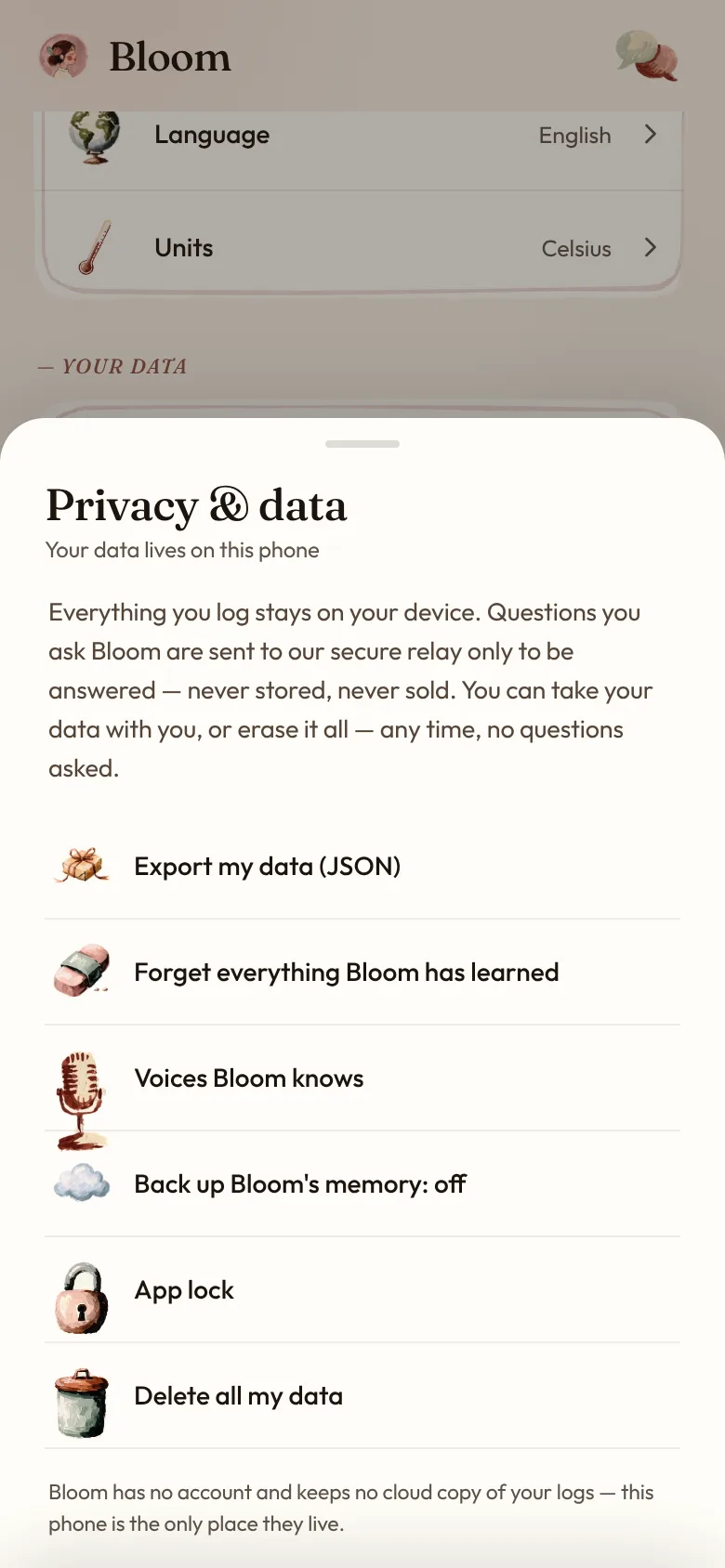
Your days stay on your phone. Here you take them with you, wipe them, and decide what Bloom keeps.
Where it is
Me Privacy & data
How to use it
- Export my data saves everything you have logged as one file.
- Delete all my data erases it all from this phone. There is no undo.
- Forget everything Bloom has learned clears what Bloom has learned about you; Voices Bloom knows lets you forget the voices she knows.
- Back up Bloom's memory: if you say Yes, keep my memory safe, a copy of Bloom's memory note — only that note — is kept on Bloom's server, so a new phone still remembers you. Turn it off and the copy is deleted.
- App lock sets a 4-digit PIN that Bloom asks for each time it opens.
- Me → Health summary makes a private summary to show your doctor or midwife.
Good to know
What leaves your phone, when, and why: the privacy policy.
Pro
What it does for you
Bloom is free to use. Pro is one payment, yours for life: the full week-by-week journey, the kick counter and the contraction timer, and the Pro tools that come later.
Where it is
Me Upgrade to Pro
How to use it
- Tap Me → Upgrade to Pro — or Unlock with Pro on a Pro tool (A Pro tool).
- Your store's own payment sheet opens — the App Store or Google Play — and the store shows the price where you live. Bloom never sees your card.
- When the store confirms it, Pro is yours, and the Pro tools open.
- After a reinstall, Pro usually comes back by itself. If it does not, write to us with the store's receipt and we will put it right.
Bloom is general information, not medical advice, and not birth control. For anything about your health, ask your doctor or midwife. In an emergency, call your local emergency number.
Something here is not what you see in the app, or you are stuck? Write to us — a person reads it.